Mac OS installer
Install Metadata Publishing Tool on Mac OS using a wizard
Attention
If a previous release of Metadata Publishing Tool was installed on your machine, first uninstall this older release. See Uninstall Metadata Publishing Tool.
Download the latest MPT_mac_installer.dmg from
the release page of the rspub-gui project on gitHub.
After download, double-click the downloaded MPT_mac_installer.dmg. This will mount the MPT_mac_installer image
on your system.
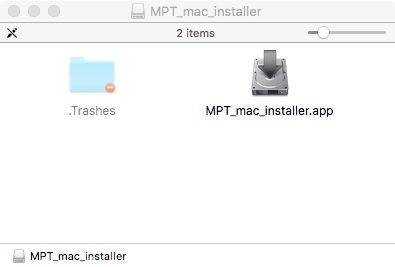
Mounted MPT_mac_installer
Double-click the MPT_mac_installer.app in the mount window.
Circumvent security
Because the software has not been code-signed by a trusted authority, security settings on your machine may object to executing it right away.
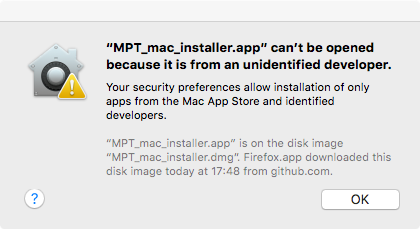
Security warning on Mac OS
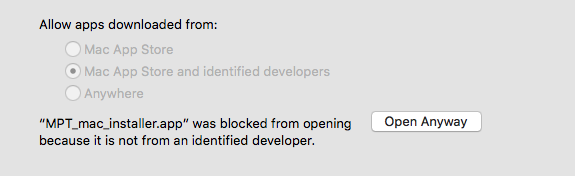
Part of System Preferences, Security & Privacy
Alternatively you may have to lower your security settings temporary. Under Allow apps downloaded from: click Anywhere. After the installation process has completed you may restore your security settings.
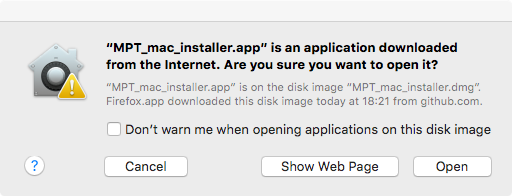
Last warning from security
After starting the MPT_mac_installer.app you may receive a last warning. Click Open to start the install
wizard.
Run the install wizard
The install wizard has several screens and will guide you through the installation process. On average, you can accept the predefined values.
Welcome message
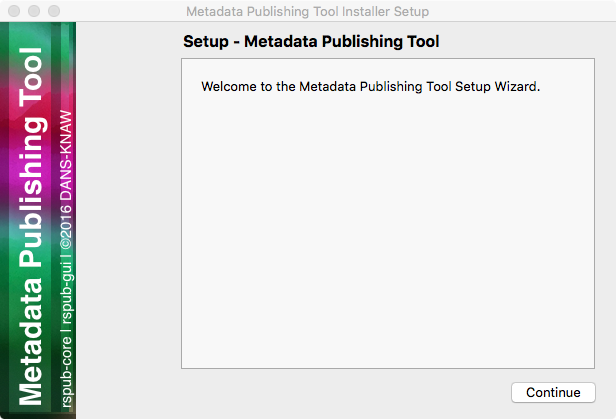
Welcome message of the install wizard
The wizard opens with a welcome message. Click Continue.
Installation folder
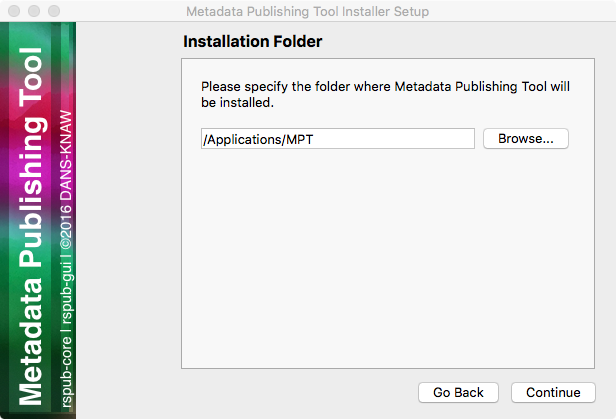
Choosing the installation folder
Choosing the installation folder. The default value is /Applications/MPT.
Choose Browse... if you want a different installation folder, choose Continue when done.
Select components
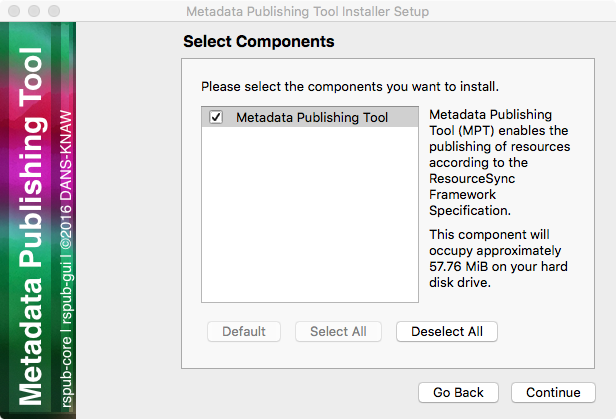
Selecting components
Metadata Publishing Tool has only one component. So leave the component selected and click Continue.
License agreement
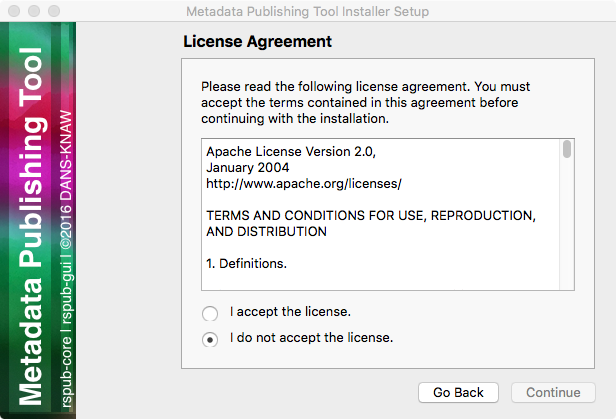
Inspecting the license
Code and executables of the Metadata Publishing Tool are distributed under the Apache License 2.0. You must accept the license agreement before you may proceed with the install wizard. Click Continue when done.
Ready to install
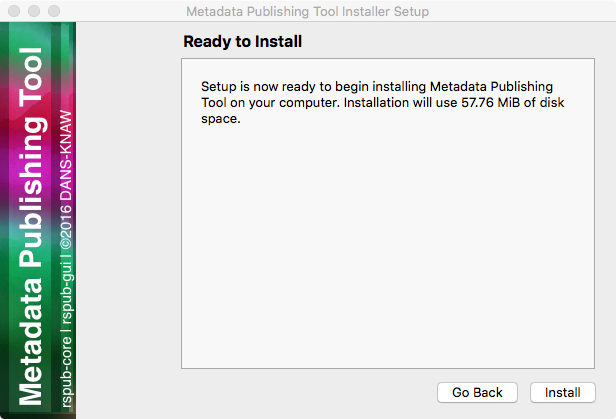
Ready to install
Click Install.
Installing Metadata Publishing Tool
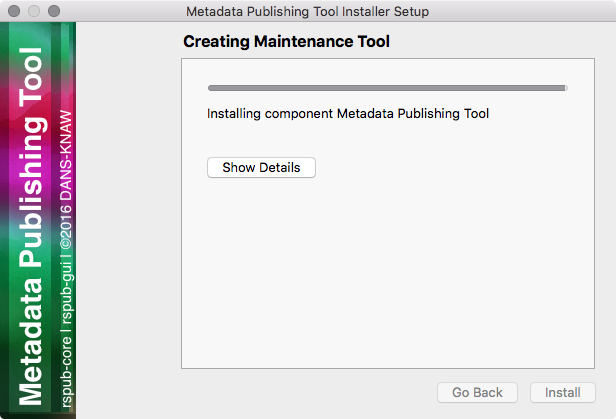
Progress of installation
The installation process will now begin. An indication of progress will be shown.
Completing the Metadata Publishing Tool Wizard
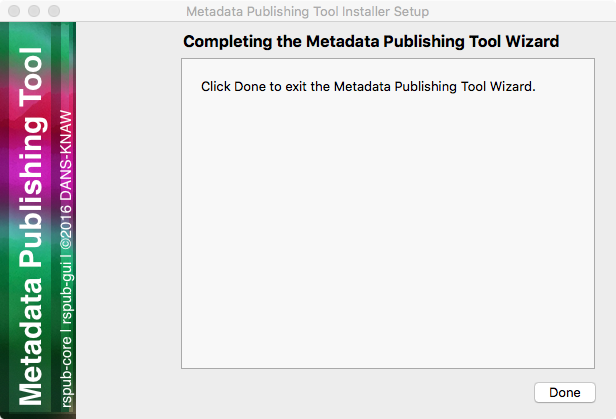
Completing the installation
After installation has completed, the last screen of the installation wizard is shown. Click Done to exit
the wizard. You may now eject the mounted MPT_mac_installer image.
Start Metadata Publishing Tool
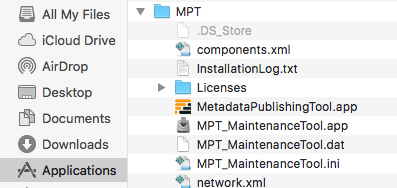
MetadataPublishingTool.app and MPT_MaintenanceTool.app in the folder MPT in the Applications folder
After completing the installation wizard you can find MetadataPublishingTool.app and the
MPT_MaintenanceTool.app in the folder MPT of your /Applications folder. Alternatively you
can click on the respective icon in your Launchpad.
Uninstall Metadata Publishing Tool
The Metadata Publishing Tool and its components can be removed from your machine by the
MPT Maintenance Tool. Click the shortcut MPT_MaintenanceTool in your Launchpad or
navigate to /Applications/MPT and double-click MPT_MaintenanceTool.app.
The uninstall wizard will begin.
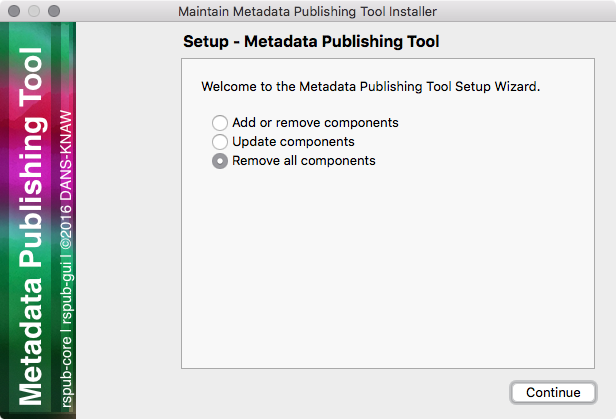
Removing Metadata Publishing Tool
Click Continue.
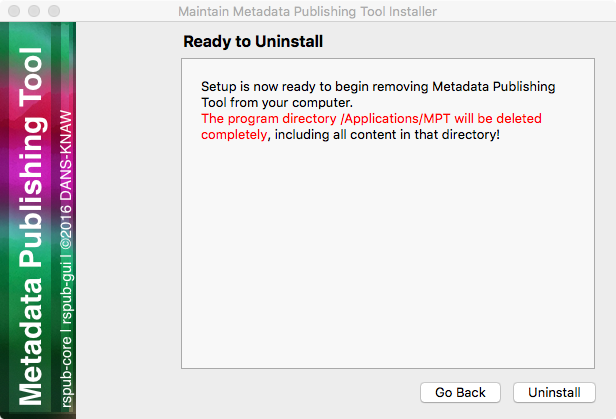
Ready to uninstall
Click Uninstall. After the uninstall process has run click Finish. The folder MPT and its
contents are now removed from your system.